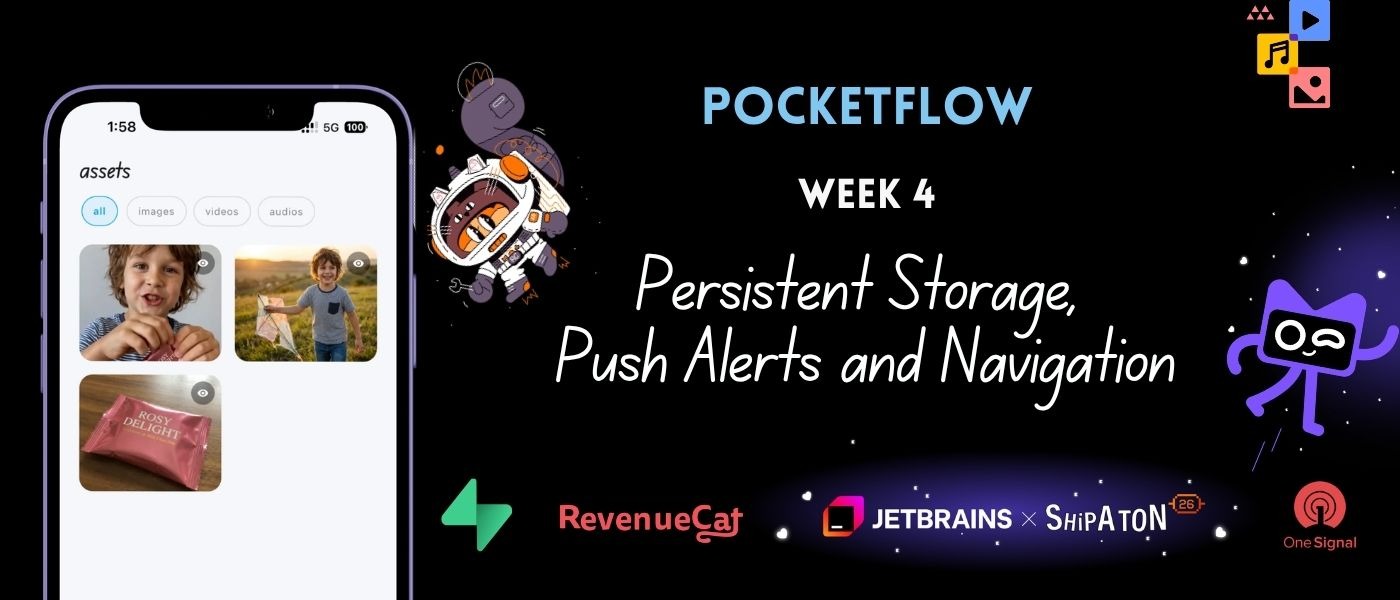
This week, we focused on making Pocketflow robust and navigatable. As AI image and video processing takes time, users cannot stay glued to the screen.
We set out to solve four major problems:
- Saving media files persistently on device storage.
- Alerting users via push notifications when generations complete.
- Preventing users from getting lost in our infinite Compose canvas.
- Caching cloud files locally to fix blank asset screens on login changes.

Persistent Storage
When an image or video is generated, it comes down as raw bytes. Saving these in temporary directories is a recipe for data loss. Using Kotlin Multiplatform platform-specific implementations, we mapped a persistent file writer to the native documents directory:
// Save bytes to native documents directory
val fileName = "pocketflow_media_${UUID.randomUUID()}.$extension"
val file = File(context.filesDir, fileName)
file.writeBytes(bytes)
Cloud Asset Caching
When a user logs out and logs back in on a new session, their local cache is cleared. The local file path no longer exists. To solve this, the UI automatically detects the remote cloud URL and downloads it via Ktor HttpClient directly to the thumbnail renderer:
if (path.startsWith("http")) {
    val bytes = HttpClient().get(path).readBytes()
    bitmap = bytes.toImageBitmap()
}

[ Load Asset Thumbnail ]
           │
     Is path HTTP?
     ├── Yes ──► Fetch via Ktor HttpClient ──► Cache & Display
     └── No  ──► Load from Local Directory  ──► Display
Push Notifications
We set up the OneSignal Framework inside native iOS (Swift) and Android wrappers, binding them to a simple shared notification interface:
// Initializing OneSignal in native Swift
OneSignal.initialize("YOUR_ONESIGNAL_APP_ID", withLaunchOptions: launchOptions)
The system triggers an alert once a workflow finishes running: "Your workflow has finished generation successfully!"
Viewport Centering Math
To re-center the canvas when users pan too far, we designed a Compass button that bounds the coordinates of all workspace nodes and re-positions the canvas viewport:
// Bounding box center alignment formula
val centerBoxX = (minX + maxX + 160f) / 2f
val targetX = (viewportWidth / 2f) - (centerBoxX * scale)

┌──────────────────────────────────────────────┐
│  Infinite Canvas Workspace                   │
│                                              │
│     [ Node A ] ──► [ Node B ]                │
│          │             │                     │
│          ▼             ▼                     │
│     Bounding Box Center: (centerNodesX, Y)   │
│                                              │
│           Re-centered around                 │
│         Screen Center: (viewCenterX, Y)      │
└──────────────────────────────────────────────┘
The Next Step
With assets safely saved on disk, native notifications active, and canvas navigation locked in, the app is fully reliable. Next week, we will tackle customizable themes and activity audit logs!